


Hey there! I'm stoked to share some tips on how to use a 1080p webcam with a tablet. As a 1080p webcam supplier, I've seen firsthand how this combo can take your video - chatting, content - creating, and learning experiences to a whole new level.
Compatibility Check
First things first, you gotta make sure your tablet and 1080p webcam are compatible. Most modern tablets support external webcams, but it's always a good idea to double - check. Look at the tablet's specifications to see if it has the right ports. Usually, tablets with USB - C or Lightning ports are more likely to work with external webcams. If your tablet has an older port, you might need an adapter.
Connecting the Webcam
Once you've confirmed compatibility, it's time to connect the webcam. If your tablet has a USB - C port, it's pretty straightforward. Just plug the webcam's USB cable into the tablet's USB - C port. Some webcams come with a special connector for tablets, so follow the instructions that come with your webcam.
If you're using a tablet with a Lightning port (like an iPad), you'll need a Lightning to USB adapter. These adapters are easy to find online or at your local electronics store. Plug the adapter into the tablet's Lightning port, and then connect the webcam to the adapter.
Software and Settings
After connecting the webcam, your tablet should automatically detect it. But sometimes, you might need to do a little bit of software setup. On Android tablets, go to the settings menu and look for the "Connected devices" or "External devices" section. You should see your webcam listed there. Tap on it to make sure it's properly connected.
For iPads, the process is a bit different. When you connect the webcam, a prompt might appear asking you to allow the webcam to access your device. Tap "Allow." Then, when you open an app that uses the camera (like FaceTime or a video - recording app), you can usually switch to the external webcam in the app's settings.
Using the Webcam in Different Apps
Now that your webcam is set up, let's talk about using it in different apps.
Video Chatting
Video chatting is one of the most popular uses for a 1080p webcam. When you're in a video - chat app like Zoom, Skype, or Google Meet, look for the camera icon or the settings menu. There, you can select your external webcam as the video source. The 1080p resolution will make your video look crystal - clear, and your friends and colleagues will notice the difference.
Content Creation
If you're into content creation, a 1080p webcam can be a game - changer. Whether you're making YouTube videos, vlogs, or live - streaming on platforms like Twitch, the high - resolution footage from the webcam will make your content more professional. In video - editing apps, you can use the webcam to record new footage or add it to your existing projects.
Learning and Education
For students and educators, using a 1080p webcam with a tablet can enhance the learning experience. In online classes, the clear video quality allows for better communication between teachers and students. Teachers can use the webcam to show presentations or demonstrations, and students can participate more actively in discussions.
Accessories for a Better Experience
To get the most out of your 1080p webcam and tablet setup, consider using some accessories.
Tablet Cases
A good tablet case can protect your tablet and also make it easier to use the webcam. Check out the Tri - fold PU ipad tablet case. It's not only stylish but also provides a stable base for your tablet, so you can position it at the perfect angle for your webcam.
Another great option is the Tablet Case with Rotating Kickstand. The rotating kickstand allows you to adjust the tablet's position easily, whether you're sitting at a desk or lying on the couch.
Power Hubs
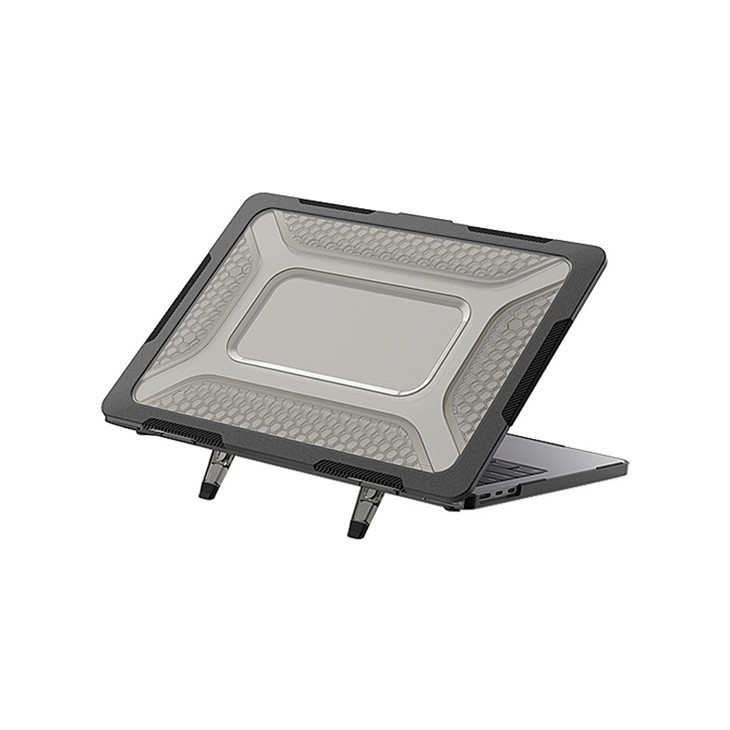
If you're using your webcam and tablet for long periods, you might run into battery issues. A power hub can solve this problem. The TS - SA13 - H case MacBook Air 2021 is a great option. It not only provides power to your tablet but also has multiple ports, so you can connect other devices like a keyboard or a mouse.
Troubleshooting
Even with the best setup, you might run into some problems. Here are some common issues and how to fix them.
Webcam Not Detected
If your tablet doesn't detect the webcam, first check the connections. Make sure the cables are plugged in properly. Try unplugging and plugging them back in. If that doesn't work, restart your tablet. Sometimes, a simple restart can fix the problem.

Poor Video Quality
If the video quality is poor, check the lighting. 1080p webcams work best in well - lit environments. Avoid direct sunlight, as it can cause glare. You can also try adjusting the webcam's settings in the app you're using. Some webcams have built - in settings for adjusting focus, brightness, and contrast.
Conclusion
Using a 1080p webcam with a tablet is a great way to enhance your digital experience. Whether you're video - chatting, creating content, or learning online, the high - resolution video from the webcam will make a big difference. With a little bit of setup and the right accessories, you can have a seamless and enjoyable experience.
If you're interested in purchasing a 1080p webcam or have any questions about using it with your tablet, feel free to reach out for a procurement discussion. We're here to help you find the perfect webcam for your needs.
References
- General knowledge from the electronics industry
- Manufacturer's instructions for 1080p webcams and tablets


