As a supplier of laptop power adapters, I often come across customers who are unsure whether their laptop power adapter is under - powering their device. This issue can lead to a variety of problems, including slow charging, reduced performance, and in some cases, prevent the laptop from operating properly. In this blog post, I'll share some insights on how to determine if your laptop power adapter is under - powering your laptop.
Understanding Power Requirements
The first step in figuring out if your power adapter is under - powering your laptop is to understand the power requirements of your device. Every laptop has a specific power consumption rate, which is typically measured in watts. This information can usually be found in the laptop's user manual, or you can check the manufacturer's website for details.
For example, a lightweight ultrabook may require as little as 30 - 45 watts to operate and charge, while a high - performance gaming laptop or a workstation with a powerful graphics card could need 150 watts or more. If your adapter is not providing enough power to meet these requirements, it's likely under - powering your laptop.
Observe Charging Behavior
One of the most obvious signs of an under - powered adapter is slow charging. If you notice that your laptop takes significantly longer to charge than it used to, or if the battery percentage hardly increases even when the laptop is plugged in for an extended period, it could be a sign that the adapter is not providing enough power.
Sometimes, the laptop may not charge at all when it's in use. For instance, if you're running resource - intensive applications like video editing software or a game, and the battery level continues to drop even while the charger is connected, it indicates that the adapter can't supply enough power to both run the laptop and charge the battery simultaneously.
Also, pay attention to the charging LED indicator on your laptop. Some laptops have LED lights that change color or blink to indicate the charging status. If the light blinks or shows a different status than normal while charging, it might be due to insufficient power.
Monitor Laptop Performance
An under - powered adapter can also impact your laptop's performance. When the adapter can't supply enough power, the laptop may throttle its components to reduce power consumption. This means that your CPU and GPU may not run at their full potential, resulting in slower processing speeds, longer application load times, and lower frame rates in games.
You may notice that your laptop becomes more sluggish when it's plugged in compared to when it's running on battery. This is because the system is trying to compensate for the lack of power by reducing performance, which is a clear sign that the adapter might be under - powering the device.
Check for Overheating
In some cases, an under - powered adapter can cause the laptop to overheat. When the power supply is insufficient, the laptop's internal components may have to work harder to perform tasks. For example, the CPU may need to run at a higher clock speed for longer periods to complete simple operations due to the lack of power. This increased workload generates more heat, leading to overheating.
If you feel that your laptop is getting unusually hot, especially around the bottom or the keyboard area while it's plugged in, it could be related to the adapter not providing enough power. Overheating not only affects the laptop's performance but can also cause long - term damage to the internal components.
Use Software Tools
There are several software tools available that can help you monitor your laptop's power consumption and the power output of the adapter. These tools can provide detailed information about the voltage, current, and power usage of your laptop.


For example, some BIOS (Basic Input/Output System) settings allow you to view power - related information. Simply restart your laptop and enter the BIOS setup by pressing the appropriate key (usually F2, F10, or Delete, depending on your laptop model). Look for a section related to power management or battery information, where you may find details about the power input.
There are also third - party software applications that can provide more in - depth power monitoring. Programs like HWMonitor can show you real - time data on your laptop's power consumption, which can help you determine if the adapter is supplying enough power.
Our Product Recommendations
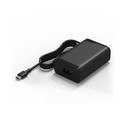
As a laptop power adapter supplier, we offer a range of high - quality adapters to meet different power requirements. Our 65W USB Type - C Laptop Charger is perfect for lightweight laptops and ultrabooks. It provides a stable power supply and is compatible with many devices that support USB Type - C charging.
If you have a laptop that requires more power, our 150W GaN Power Adapter is an excellent choice. Gallium Nitride (GaN) technology allows this adapter to be more efficient and compact compared to traditional adapters while still delivering high - power output.
In addition, our TS - W100A0960 Charging Laptop with USB C Phone Charger offers a unique solution for users who need to charge their laptops using a USB - C phone charger. It provides a convenient and cost - effective way to power your laptop, especially when you're on the go.
Contact Us for Purchase and Consultation
If you're experiencing issues with your laptop power adapter or need to purchase a new one, we're here to help. Our team of experts has extensive knowledge of laptop power adapters and can assist you in finding the right product for your needs. Whether you're a casual user, a professional, or a business owner, we have the right adapter to keep your laptop running smoothly.
Feel free to reach out to us to start a procurement discussion. We're committed to providing high - quality products and excellent customer service.
References
- Laptop user manuals from major manufacturers.
- Technical articles on laptop power management and adapter technologies.
- Software documentations for HWMonitor and other power - monitoring tools.