


As a supplier of networking adapters, I understand the critical importance of maintaining optimal operating temperatures for these devices. Overheating can lead to performance degradation, reduced lifespan, and even complete failure of the adapter. In this blog post, I'll share some effective methods to check the temperature of a networking adapter, ensuring its reliable operation and longevity.
Why Monitoring Adapter Temperature Matters
Networking adapters, whether they are USB-C To VGA Female Adapter, USB-C To HDMI Female Adapter, or USB2.0 To RJ45 Adapter, generate heat during normal operation. This heat is a by - product of the electrical currents flowing through the adapter's components. If the heat is not dissipated properly, it can cause the internal temperature to rise to dangerous levels.

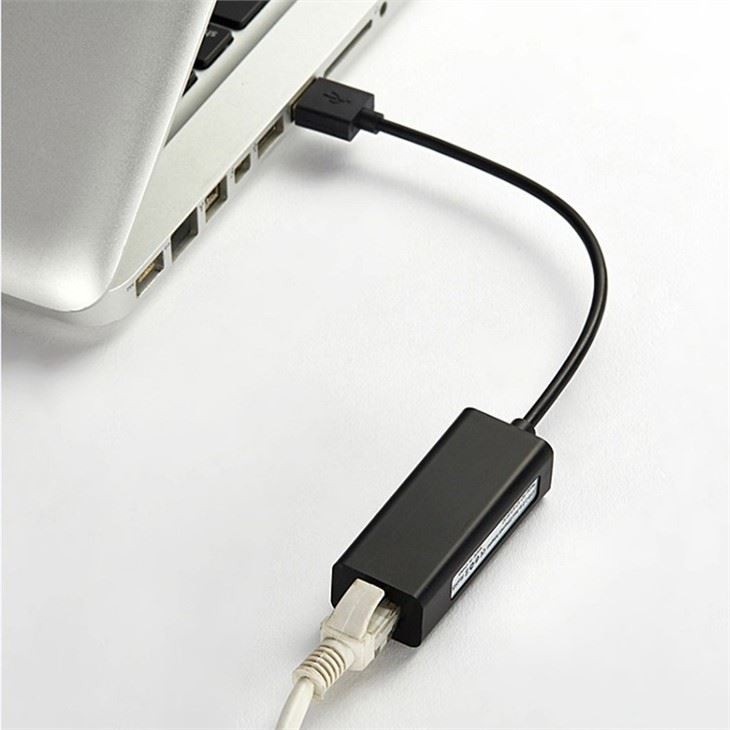
High temperatures can cause several issues. First, it can lead to a decrease in the adapter's performance. For example, a networking adapter operating at high temperatures may experience slower data transfer rates, increased latency, or intermittent connection drops. Second, overheating can accelerate the wear and tear of the adapter's components, reducing its overall lifespan. Finally, in extreme cases, excessive heat can cause permanent damage to the adapter, rendering it useless.
Methods to Check the Temperature of a Networking Adapter
Using Built - in Sensor Data (if available)
Some advanced networking adapters come with built - in temperature sensors. These sensors can provide real - time temperature data, which can be accessed through the device's management software or the operating system.
- For Windows Systems:
- Many modern networking adapters are supported by device manufacturers' software. You can visit the manufacturer's official website to download and install the latest driver and management software for your specific adapter model. Once installed, open the software and navigate to the section that displays device information. Here, you may find the temperature reading of the adapter.
- Additionally, some third - party system monitoring tools like HWMonitor can also be used. These tools can detect and display the temperature of various hardware components, including networking adapters, if they are supported.
- For Linux Systems:
- Linux users can use tools like lm - sensors. First, you need to install the lm - sensors package using the package manager of your Linux distribution (e.g.,
sudo apt - get install lm - sensorsfor Ubuntu). Then, run thesensors - detectcommand to detect the available sensors on your system. After that, thesensorscommand will display the temperature readings of the detected sensors, which may include the networking adapter if it has a compatible sensor.
- Linux users can use tools like lm - sensors. First, you need to install the lm - sensors package using the package manager of your Linux distribution (e.g.,
Infrared Thermometers
If your networking adapter does not have a built - in temperature sensor, an infrared thermometer can be a useful tool. Infrared thermometers work by measuring the infrared radiation emitted by an object and converting it into a temperature reading.
- How to Use an Infrared Thermometer:
- First, make sure the networking adapter is in operation. Point the infrared thermometer at the surface of the adapter. It's best to aim at the areas where heat is likely to accumulate, such as the chips or the areas near the connectors.
- Press the trigger on the infrared thermometer to take a reading. The thermometer will display the temperature on its screen. Make sure to take multiple readings from different parts of the adapter to get an accurate average temperature.
Thermal Imaging Cameras
Thermal imaging cameras are more advanced than infrared thermometers. They can provide a detailed thermal image of the networking adapter, showing the temperature distribution across its entire surface.
- Benefits of Using a Thermal Imaging Camera:
- With a thermal imaging camera, you can easily identify hotspots on the adapter. Hotspots are areas where the temperature is significantly higher than the surrounding areas, which may indicate a problem with heat dissipation or a faulty component.
- Thermal imaging cameras can be used for preventive maintenance. By regularly monitoring the adapter's temperature distribution, you can detect potential issues before they cause significant problems.
Interpreting Temperature Readings
Once you have obtained the temperature reading of your networking adapter, it's important to know what the reading means. The normal operating temperature range of a networking adapter can vary depending on the model and the manufacturer. However, in general, most networking adapters operate safely between 30°C and 60°C.
- Normal Operation: If the temperature reading is within this normal range, it indicates that the adapter is operating under normal conditions. You can continue to use the adapter without major concerns, but it's still a good idea to monitor the temperature regularly.
- Warning Zone: If the temperature reading is between 60°C and 75°C, it's a warning sign. This may indicate that the adapter is under heavy load or that there are issues with heat dissipation. You should check if the adapter is properly ventilated and if there are any obstacles blocking the airflow around it.
- Danger Zone: A temperature reading above 75°C is extremely dangerous. At this temperature, the adapter is at a high risk of performance degradation and permanent damage. Immediately stop using the adapter, allow it to cool down, and investigate the cause of the overheating.
Preventive Measures to Keep the Adapter Cool
Adequate Ventilation
Proper ventilation is crucial for keeping the networking adapter cool. Make sure the adapter is installed in an area with good airflow. Avoid placing the adapter in enclosed spaces or near other heat - generating devices.
Use of Cooling Accessories
There are various cooling accessories available in the market that can help keep the networking adapter cool. For example, you can use a small heatsink or a cooling fan. These accessories can be attached to the adapter to improve heat dissipation.
Conclusion
Monitoring the temperature of your networking adapter is an essential part of maintaining its performance and longevity. By using the methods described above, you can easily check the temperature of your adapter and take appropriate measures to prevent overheating.
If you are in the market for high - quality networking adapters, including USB - C To VGA Female Adapter, USB - C To HDMI Female Adapter, and USB2.0 To RJ45 Adapter, we are here to serve you. We offer a wide range of networking adapters that are designed to provide reliable performance and excellent heat dissipation. If you are interested in purchasing our products or have any questions about networking adapter temperature management, please feel free to contact us for procurement and further discussions.
References
- "Computer Hardware: A Comprehensive Guide" by Andrew Tanenbaum
- "Networking Fundamentals" by Cisco Press
- Manufacturer's documentation for various networking adapter models


